1. Use atleast 8 character long password
2. Dont use your usernane as password
3. Dont use your mobile number as a password
4. Use Alphanumeric password which contains Alphabates and Numbers
5. Use such password that difficult to guss for others
6. Dont write your password anywhere
7. Choose such password that is easy to remember for you and difficult to guss other peoples
8. Don't share your password with anyone.
Monday, 19 December 2011

Wednesday, 14 December 2011
What is Favicon?How to make Favicon for your Website or Blog?
Favicon: A favicon is a short form of Favourite icon. And it is short icon which shown in the address bar with the Website Url. Its basic size is 16*16 or 32*32 pixel square image.
If you have an image and you want to create a Favicon for your web or blog then just go to:
www.genfavicon.com
and now choose your file. Or enter image url and "Upload" it.
Now choose part of image you want in favicon by using mouse and choose favicon size.
Now generate your favicon and Download it and by using the html script you can set up it to your site.
For Blogger Users: After downloading favicon go to "Design or Layout" in your blogger account and click to "Edit" option provided at Favicon Bar and upload Favicon to setup on your blog.
If you have an image and you want to create a Favicon for your web or blog then just go to:
www.genfavicon.com
and now choose your file. Or enter image url and "Upload" it.
Now choose part of image you want in favicon by using mouse and choose favicon size.
Now generate your favicon and Download it and by using the html script you can set up it to your site.
For Blogger Users: After downloading favicon go to "Design or Layout" in your blogger account and click to "Edit" option provided at Favicon Bar and upload Favicon to setup on your blog.
How To Recover Yahoo Account? Reset Yahoo Password
if you forgot your Yahoo id's Password
or your Password doesn't work then just follow this step and You will get your Account Back
Just go to:
mail.yahoo.com
and click to "I cannot access my Account" below the Log in box
Now choose any 1 option from following and click to "Next"
1. I Forgot My Password
2. My Password Doesn't Work
3. I Forgot My Yahoo Id
Now write your Yahoo id and Type the code shown in the box and click to "Continue"
To verify your identity yahoo will ask you for your secondary email id.
If you submit correct email id then Yahoo will send you Password Reset Link to your email
If you dont use secondary email id with your Yahoo Account then Answer the Two Security Questions or by Mobile code verification you can reset password
or your Password doesn't work then just follow this step and You will get your Account Back
Just go to:
mail.yahoo.com
and click to "I cannot access my Account" below the Log in box
Now choose any 1 option from following and click to "Next"
1. I Forgot My Password
2. My Password Doesn't Work
3. I Forgot My Yahoo Id
Now write your Yahoo id and Type the code shown in the box and click to "Continue"
To verify your identity yahoo will ask you for your secondary email id.
If you submit correct email id then Yahoo will send you Password Reset Link to your email
If you dont use secondary email id with your Yahoo Account then Answer the Two Security Questions or by Mobile code verification you can reset password
How to Use Application- specific passwords?
For 2-Step Verification security Users Application specific
passwords are usefull to Authorise the Password for Applications like Outlook,Google Talk and other sites to use your gmail access
Just go to:
https://
www.google.com/
accounts/
IssuedAuthSubTokens
Now log in with your Gmail id and Password
write Application Name for which you want to create Specific Password
then click to "Generate Password"
Now you see your specific Password note down it and click to "Done"
Note down it carefully.
after clicking "Done" you can't see the password again due to security resons
Here you can manage your passwords and you can see the following information
Application name
Creation date
Password Used date
Revoke
passwords are usefull to Authorise the Password for Applications like Outlook,Google Talk and other sites to use your gmail access
Just go to:
https://
www.google.com/
accounts/
IssuedAuthSubTokens
Now log in with your Gmail id and Password
write Application Name for which you want to create Specific Password
then click to "Generate Password"
Now you see your specific Password note down it and click to "Done"
Note down it carefully.
after clicking "Done" you can't see the password again due to security resons
Here you can manage your passwords and you can see the following information
Application name
Creation date
Password Used date
Revoke
Monday, 12 December 2011
Setup 2-Step verification Security Option For Your Google-Gmail Account
2-Step verification:
it is new way of protection of your account.
Working:
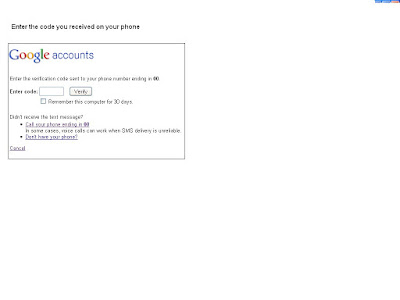
When you sign in with your gmail id and Password,Each time 6 digits code will sent to your mobile by sms or voice call
you have to enter code received and verify it then you can use your account.
Now it is impossible for fake users/Hackers to use your account with a stolen or hacked Password.
If you want to Activate 2-Step verification then follow the steps below:
* Just Go To:
accounts.google.com/servicelogin
Click To "Edit" in front of 2-Step verification
Click to "Start setup"
Then Select Country
Enter mobile number
and Click to "Send code"
Now you will get code on your mobile. Write it in the box and click to "Verify"
and select "Next"
if you are log in from your personal Computer the you can choose Option "Remember me on this computer for 30 days"
if you select this then for next 30 days if you log in from this computer you will not ask for "code."
After 30 days you will get new code for your personal coputer use also
if you log in through different computer in this duration it will sent you new code
Now Click To "Next"
Finally click to "Turn On 2-Step Verification" to activate this method of Sign in
In case of your mobile lost or if you are out of station and you don't have your phone there. Add backup phone number to your account for receiving code on it. Click to "Add backup phone number"
if you are traveling and you don't have your phones and need to log in to your account at this time you can use this codes
Click to "show/generate codes"
Now you can see 10 codes. Note down it and take it with you always when you need to emergency log in and you don't have phone then you can use it to sign in
Note: each code can use once and it becomes inactive after use.
When you use all 10 codes Generate new codes in your account.
Sign in procedure by using 2-Step Verification method:
when you sing in with your email id and Password to your account,Google send you a code on your mobile number
Enter the verification code generated by your mobile application in the box
you can choose:
Remember me on this computer for 30 days
Click to "Verify"
If you are Siging in by using a code recived on backup phone number or by using backup codes then click to "Other ways to get a verification code"
and select option from:
1. Backup phone
2. backup codes
and by Verifying code you can sign in safely
If your Gmail Account is Locked and you cant access your gmail account then go to
https://accounts.google.com/DisplayUnlockCaptcha
Write your gmail id,Password and enter the text shown in the box and click to "Unlock"
it is new way of protection of your account.
Working:
When you sign in with your gmail id and Password,Each time 6 digits code will sent to your mobile by sms or voice call
you have to enter code received and verify it then you can use your account.
Now it is impossible for fake users/Hackers to use your account with a stolen or hacked Password.
If you want to Activate 2-Step verification then follow the steps below:
* Just Go To:
accounts.google.com/servicelogin
Click To "Edit" in front of 2-Step verification
Click to "Start setup"
Then Select Country
Enter mobile number
and Click to "Send code"
Now you will get code on your mobile. Write it in the box and click to "Verify"
and select "Next"
if you are log in from your personal Computer the you can choose Option "Remember me on this computer for 30 days"
if you select this then for next 30 days if you log in from this computer you will not ask for "code."
After 30 days you will get new code for your personal coputer use also
if you log in through different computer in this duration it will sent you new code
Now Click To "Next"
Finally click to "Turn On 2-Step Verification" to activate this method of Sign in
In case of your mobile lost or if you are out of station and you don't have your phone there. Add backup phone number to your account for receiving code on it. Click to "Add backup phone number"
if you are traveling and you don't have your phones and need to log in to your account at this time you can use this codes
Click to "show/generate codes"
Now you can see 10 codes. Note down it and take it with you always when you need to emergency log in and you don't have phone then you can use it to sign in
Note: each code can use once and it becomes inactive after use.
When you use all 10 codes Generate new codes in your account.
Sign in procedure by using 2-Step Verification method:
when you sing in with your email id and Password to your account,Google send you a code on your mobile number
Enter the verification code generated by your mobile application in the box
you can choose:
Remember me on this computer for 30 days
Click to "Verify"
If you are Siging in by using a code recived on backup phone number or by using backup codes then click to "Other ways to get a verification code"
and select option from:
1. Backup phone
2. backup codes
and by Verifying code you can sign in safely
If your Gmail Account is Locked and you cant access your gmail account then go to
https://accounts.google.com/DisplayUnlockCaptcha
Write your gmail id,Password and enter the text shown in the box and click to "Unlock"

Friday, 9 December 2011
Windows is the future
How many of you have been following the release of the iPhone 4S? Well, I'm one of them and seriously, the Apple latest iPhone is pretty much a let down...partly due to the hype played by the rumours.
However, my main concern is: Windows Phone. If those of you who still think that Windows are using the old interface on the Windows Mobile, think again. And why did my post start with Windows is the future...look at Windows 8!!
Honestly, the upcoming OS for Microsoft will have one of the biggest changes in terms of interface and even functionality. Microsoft aims to make it user friendly for everyone...question is will it work? Well, Windows 8 looks promising but even if Windows 8 fails to make the impact as expected, Microsoft is heading at the right direction.
A one similar interface across all platforms....your PC, your tablet, your smartphone....and that is exactly the idea of Steve Jobs (the man that everyone seem to praise)
Here are why Microsoft simply does it right, at least on paper at the moment:
1) Windows 8 Store - Windows 8 Store is the first thing that Microsoft probably has done right. Microsoft's revenue sharing for the apps on the upcoming Windows 8 store will be 30%, similar to iTune app store, Mac App store etc....but once the $25,000 mark is cross, Microsoft will only take 20% of the share. And guess what, the fees is much cheaper with $49 charged a year for individual and $99 for company. As for Apple, the charges is $99 a year for individual and $299 for companies wishing to do so. This will definitely be an attraction to developers.
2) Tablet will finally work for Microsoft - One thing that we must credit to Microsoft is the ability not to rush into tablets even after the launch of Windows Phone 7. It must be a painful process for the tech-giant company to play underdog but this has given ways for the tablets to work together with Windows 8, and rumours suggest that the Windows 8 tablets will make it big.
3) Windows Phone on the right track - What else can we say but Windows has been heading to the right direction with Windows Phone...the collaboration with Nokia was also a good effort. If anything were to say about Windows Phone, it is a work heading to the right direction...
I believe Apple's mistake with the launch of iPhone 4S that has receive so much criticism (regardless of how brilliant they claim Siri to be, I still find it stupid) also open up the way for Microsoft to penetrate into the market. The scenarios and circumstances at this point suggests Microsoft only has to do it right to regain the customers in the mobile industry...
- Posted using BlogPress from my iPad
However, my main concern is: Windows Phone. If those of you who still think that Windows are using the old interface on the Windows Mobile, think again. And why did my post start with Windows is the future...look at Windows 8!!
Honestly, the upcoming OS for Microsoft will have one of the biggest changes in terms of interface and even functionality. Microsoft aims to make it user friendly for everyone...question is will it work? Well, Windows 8 looks promising but even if Windows 8 fails to make the impact as expected, Microsoft is heading at the right direction.
A one similar interface across all platforms....your PC, your tablet, your smartphone....and that is exactly the idea of Steve Jobs (the man that everyone seem to praise)
Here are why Microsoft simply does it right, at least on paper at the moment:
1) Windows 8 Store - Windows 8 Store is the first thing that Microsoft probably has done right. Microsoft's revenue sharing for the apps on the upcoming Windows 8 store will be 30%, similar to iTune app store, Mac App store etc....but once the $25,000 mark is cross, Microsoft will only take 20% of the share. And guess what, the fees is much cheaper with $49 charged a year for individual and $99 for company. As for Apple, the charges is $99 a year for individual and $299 for companies wishing to do so. This will definitely be an attraction to developers.
2) Tablet will finally work for Microsoft - One thing that we must credit to Microsoft is the ability not to rush into tablets even after the launch of Windows Phone 7. It must be a painful process for the tech-giant company to play underdog but this has given ways for the tablets to work together with Windows 8, and rumours suggest that the Windows 8 tablets will make it big.
3) Windows Phone on the right track - What else can we say but Windows has been heading to the right direction with Windows Phone...the collaboration with Nokia was also a good effort. If anything were to say about Windows Phone, it is a work heading to the right direction...
I believe Apple's mistake with the launch of iPhone 4S that has receive so much criticism (regardless of how brilliant they claim Siri to be, I still find it stupid) also open up the way for Microsoft to penetrate into the market. The scenarios and circumstances at this point suggests Microsoft only has to do it right to regain the customers in the mobile industry...
- Posted using BlogPress from my iPad
Location:Jalan Pegoh Seberang 3,Ipoh,Malaysia
Saturday, 3 December 2011
Iphone 4S Siri not as good as advertised...
Have you ever felt cheated by an advertisement? If you have then you will understand what I feel when I first playing with the iPhone 4S... The Siri shown on the advertisement was far more accurate and cool than the real one...while Siri wasn't too bad, it just isn't good enough. Not good for me to replace my iPhone 4... YenLeng bought the iPhone 4S and I played with the Siri and it just wasn't good enough...  First of all, the design was exactly the same...not something bad since I like it the way it is...nothing to complain about since the retina display is amazing as ever... Alright...here is Siri...
 I ask for the time...it shows to me accurately....quite accurate when I talk about my calendar...but couldn't search for places in Malaysia...that is pathetic!! Even vlingo could do better I think....well, as. For the sense of humor, it is not bad...but after one play with it for a while, you'll get bored of it because all of the replies are pre-programmed... Anyway, one thing for sure...Siri fails!! Here are the images I took while playing with 4S Siri...


First of all, the design was exactly the same...not something bad since I like it the way it is...nothing to complain about since the retina display is amazing as ever... Alright...here is Siri... I ask for the time...it shows to me accurately....quite accurate when I talk about my calendar...but couldn't search for places in Malaysia...that is pathetic!! Even vlingo could do better I think....well, as. For the sense of humor, it is not bad...but after one play with it for a while, you'll get bored of it because all of the replies are pre-programmed... Anyway, one thing for sure...Siri fails!! Here are the images I took while playing with 4S Siri...
Subscribe to:
Posts (Atom)